Modules · For the quality manager
Training & Competence
How the work moves
Competence- 1Set requirement
- 2Assign learning
- 3Verify competence
- 4Keep evidence current
Open: Training in NormaQMS for people, reading requirements, the matrix and qualifications; NormaLMS, from the product switcher at the top of the sidebar, for onboarding (training items, tests, job roles, trainers, sign-offs and the supervisor view). Typical leads: Quality Manager and Department Manager; technicians may record permitted completions; every person signs their own training. Purpose: show who is trained on the required effective documents, with revision-specific evidence of reading, testing and sign-off.
Training is free on every plan, with unlimited people, and includes the onboarding pages in NormaLMS. The NormaLMS Library of courses is a separate purchase (chapter 35).
Where training lives
The NormaLMS rail shows each onboarding page only to the people who can use it:
| Rail entry | Who sees it | What it is for |
|---|---|---|
| Your training | Everyone | The signed-in person's own training: read, take the test, sign |
| My people | Holders of the supervising permission (quality manager, department manager), and anyone with a direct report | The supervisor view, the training matrix and each person's transcript |
| Trainer sign-offs | A person with a live trainer designation | The people waiting for that trainer's sign-off |
| Roles and items | Whoever sets up training items, job roles or the training settings | The tabs Training items, Job roles and Training settings |
| Trainers | Whoever designates trainers (the quality manager) | Trainer designations |
| Library | Everyone | The NormaLMS course catalog, then My Learning and Certificates; Transcript follows for those who may read the course transcript (the quality manager and administrators) |
Setting up items is the quality manager's and the document controller's work; job roles, trainers and the training settings are the quality manager's alone. An internal auditor holds none of the setup permissions. A consultant on a Build key may set up items and roles, but may not designate trainers, sign as a trainer or approve a deviation. Every training page finds the signed-in person as the person linked to their login, never by matching an email address.
Maintain the people list
Use People to add the humans whose competence you track. Enter name and optional job title and email. Coordinate this with the Organization chart so that the same employee is not represented twice. A machinist without a login can still have reading requirements, training items and completion history.
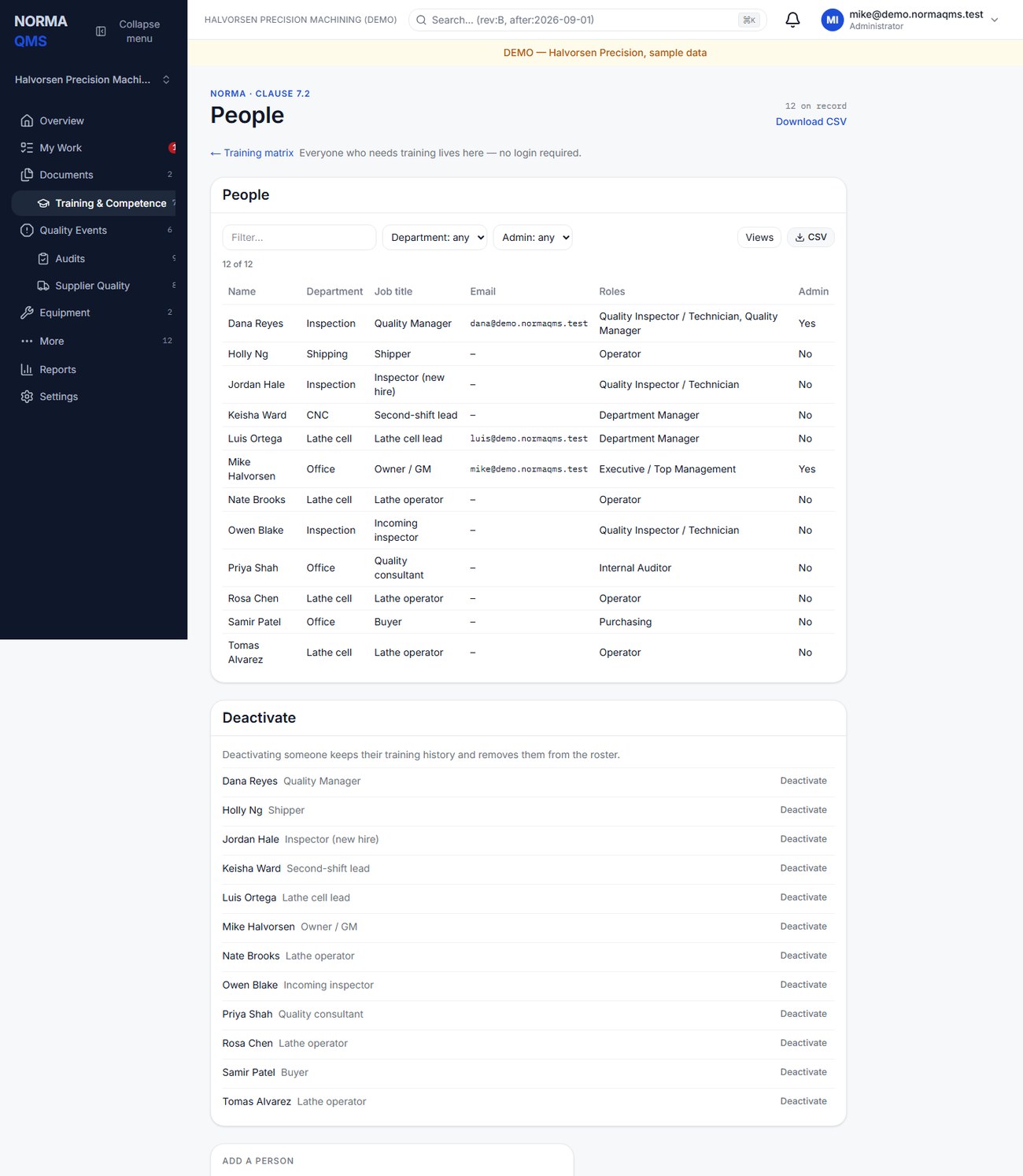
Add a person also takes a Start date (optional), Reports to (optional), a first Job role (optional) and, for an owner or quality manager, a Floor PIN (optional, four to six digits). With a PIN the person signs in on a shared floor tablet; no login is needed. Everything is recorded in one step and the person's training is assigned at once; if any part is refused (a bad PIN, an unknown supervisor, a bad date), no person is created. The Organization chart's add-person form takes the same fields, plus the unit and the first permission role. Change an existing person's start date and who they report to under Start dates and reporting. A person cannot report to themselves or to anyone who reports up to them.
Deactivate a departed person through the offered control. Their earlier completions remain evidence. Separately remove or revise sign-in access, active assignments, and department memberships where needed.
Assign required reading
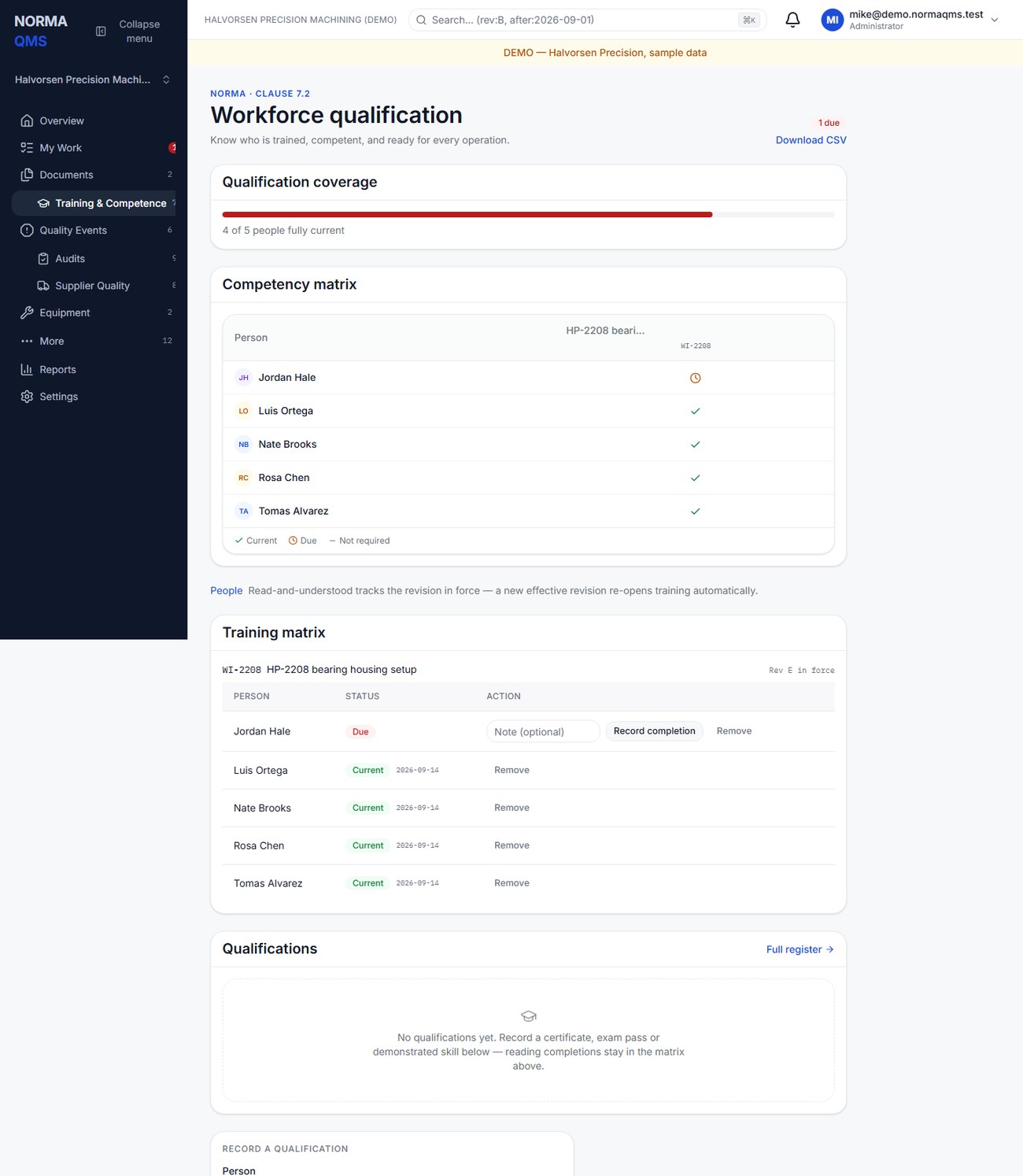
- Ensure the instruction has an Effective revision in Document Control.
- Select Require reading, choose the document and person, and submit.
- Confirm the person appears under that document in the training matrix.
- Repeat for the other people who actually need that instruction. Assign by responsibility, not simply to every employee.
The requirement follows the document across revisions. It is not a one-time assignment tied only to Rev A. Remove a requirement when the person's duties no longer require it, using the offered Remove action. The removal is retained in history.
A reading requirement makes its document a training item under the reading-only rule, if it is not one already: one reading completes it, as reading requirements always have. Documents that had reading requirements before training items existed were made reading-only items in the same way, so every status on them reads as it did. A quality manager can later move an item to the full rules (chapter 11, Training items and the full rules).
Record completion
The matrix identifies the document number, title, revision in force, and required people. Current means an eligible completion covers the current training requirement; Due means it does not.
For your own assigned reading, open the effective file and choose I've read Rev …. For supervised or recorded completion, an authorized user selects Record completion beside the person and adds an optional note. A person can also acknowledge a due reading from the shop-floor tablet under their own name (chapter 21). Confirm the person's status and the exact revision recorded.
Completion captures the revision and its file hash. It cannot be recorded against an arbitrary draft or a superseded revision as though that were the version in force. A person without an active requirement cannot be made current through an unrelated completion.
These steps complete a reading-only item. On an item under the full rules, a recorded reading is only one part of the record: the person stays Due until they pass the test, if there is one, and sign in Your training, and a trainer signs where one is required. The matrix shows the same answer as Your training.
Training items and the full rules
Open: NormaLMS > Roles and items > Training items. A training item is something people are trained on: a controlled document, or an outside qualification such as a forklift license. The list shows each item's kind, what it Completes with, its test, whether it Blocks work, and whether Everyone needs it.
- Under Train on a document, choose a document in force that is not yet an item and choose Make it a training item. A document that already has reading requirements becomes a reading-only item; any other document starts under the full rules.
- Under Add an outside qualification, enter its Name and, optionally, Renew every (months, optional), then Add qualification. An outside item is complete when the person holds a current accepted qualification record with the same name (chapter 11, Record and accept a qualification); the item reads Record accepted by quality.
- Open an item to change its Settings: A trainer must sign people off; Blocks work when not current; Everyone needs this (one of the basics); Refresher every (months, blank for none); Pass mark (percent); and Attempt limit (blank for unlimited). Choose Save settings. A new document item needs a trainer, blocks work, has a pass mark of 85 and unlimited attempts. Each change is recorded on the chain.
How an item completes. Under the full rules, a person reads the revision, passes the test when the item has one, and signs; a trainer then signs when the item needs one (Read, test, employee and trainer sign). Under the reading-only rule, one reading completes the item, and an accepted outside qualification offered against the document still counts.
Move to the full rules. On a reading-only item, the How this item completes card offers Move to the full rules to the quality manager only, behind the box I understand this item will never go back to reading only. The move is one way and recorded on the chain. It takes nothing back: every revision already approved, scheduled or in force keeps the reading rule, so nobody current now loses that. The full rules apply to revisions approved after the move, which then cannot take effect without retraining. The card afterwards reads Moved from reading only on {date}. A refresher interval and a test can be set only on an item under the full rules; a reading-only item's test editor reads Move this item to the full rules to add a test.
Tests
The Test card on an item page holds its questions. Under Add a question, enter the Question and Answers (two to six; mark the correct one), then Add question. Edit retires the question and adds the new wording; past attempts keep the question they were asked. Retire removes a question from future tests and keeps it in the record. The quality manager and document controllers edit tests; anyone else sees the questions without the forms.
Each attempt draws the questions, and the answers within each question, in a different order. The score passes at or above the pass mark (8 of 10 fails at 85; 9 of 10 passes). Every attempt is recorded with the questions drawn, each answer, the score and the result, numbered per person, item, revision and refresher cycle. When an attempt limit is set, no further attempts are accepted in that cycle once it is used up.
Before a new revision of an item with a test takes effect, someone must confirm the test still fits it. The card lists each approved or scheduled revision waiting for this, with Confirm the test fits Rev {x} (recorded on the chain). Edit the questions first if the revision changed what they ask. A test added after people have signed takes nothing back: whether a test was required is judged when the person signs.
Job roles and due dates
Open: NormaLMS > Roles and items > Job roles. A job role is a position in the shop, such as CNC Operator or Inspector. It lists the training the role needs, and everyone who holds it owes those items.
- Under Add a job role, enter a Name and choose Add role.
- Under Training this role needs, tick its items and choose Save training list.
- Under Who holds it, choose a person and a date and select Give this role. End role with a date ends the holding; the person then no longer owes the role's items through it.
A person owes the union of the basics (items everyone needs), the items of every job role they hold today, their individual requirements, and any items a job created for them. Due dates follow the earliest source:
| Source | Due |
|---|---|
| The basics, for a new hire | Ten days after the start date |
| Role items, for a new hire | Fourteen days after the start date |
| A role given after the start date | Fourteen days after it was given |
| An individual requirement | The date the quality manager set, else fourteen days after it was set |
| A requirement a job created (Needed for job {n}) | The day it was created |
Trainers
Open: NormaLMS > Trainers. Only a quality manager designates trainers. Under Designate a trainer, choose the Person and what they May sign off: All training items, The basics, or Named items (then choose the items), and choose Designate. Anyone on the people list can be designated, with or without a login. Revoke needs a reason; revoked designations stay listed as history. Both are recorded on the person's chain.
A trainer can sign someone off only when all of these hold; otherwise the screen says why and nothing is written:
- they hold a live designation covering the item;
- they are not the trainee;
- their own training on the item is current on the revision being signed;
- their own refresher on the item has not lapsed. A refresher that is only Due still allows signing; a lapsed one reads Your own refresher on this training item has lapsed. Renew it before you sign anyone off on it.
Your training
Open: NormaLMS > Your training. The page lists everything the signed-in person owes. Needed before you work holds role, job and individual items; Basics for everyone holds the items they owe only because everyone does. Each row shows the document and revision, what is recorded (test score and try, who signed and when) or how it completes, and its state: Due {date}, Overdue, was due {date}, New revision, retrain by {date}, Waiting for trainer, Refresher due {date}, or Refresher lapsed {date}. A row a job created reads Needed for job {n}. The heading counts N of M done.
When items under Needed before you work are not current, a banner counts the items the floor would refuse, whether a role, a job or an individual assignment asks for them. Where the organization enforces training on the floor, it reads You can't clock onto jobs that need them until the N items under Needed before you work are signed off.; otherwise The N items under Needed before you work are required before you work on jobs that use them. A basic that is the work instruction of an open job adds a line naming the job.
- Open an item. Under Read, choose Open {document} Rev {x} and read it through. During a training window the link opens the approved revision you are training on, before it takes effect.
- Under Test, answer each question and choose Submit answers. Each attempt is listed as Passed or Not passed with its score; after a failed attempt, take the test again.
- Under Sign, read the statement, enter Your password, and choose Sign. The default employee statement is I have read and understood {doc} Rev {rev} and was trained on it. A wrong password records nothing but the failure: Password did not match. Signature not recorded.
- If the item needs a trainer, it reads Waiting for trainer until one signs.
A reading-only item, or a revision still under the reading rule, shows Mark as read instead of the test and signature. Its state on this page may carry a due date; its My Work item does not (chapter 11, Training in My Work and the Monday digest).
Refreshers. An item with a refresher interval has an expiry date: the date of the last completion plus the interval. It reads Refresher due {date} from fourteen days before the expiry date through the expiry date itself, and lapses (Refresher lapsed {date}) the day after. Renew is offered from the first day of the Due window. Renewal is a new cycle on the same revision: a new test pass when the item has questions, your signature, and the trainer's when one is required. Until the refresher lapses you stay current, including while a renewal waits for its trainer. Only a lapsed refresher blocks work.
Each signature stores the statement in force when it was signed, filled with the document number, revision and name, and a hash of what was signed (the item, revision, file hash, test attempt, signer, role, method and statement).
Sign people off as a trainer
Open: NormaLMS > Trainer sign-offs, or the Trainer sign-offs: N waiting for you link on Your training. Waiting for your sign-off lists the people who have signed and now wait for a trainer you may act as; choose Review and sign.
The sign-off screen shows every test attempt on the revision (newest first), the pass mark and the questions missed on the cited try, and the employee's signature: when, whether by password or by PIN on a named tablet, and the statement they signed.
- Observe the person perform the work.
- To sign them off, read the trainer statement, enter Your password, and choose Sign as trainer. The default statement is I trained {person} on {doc} Rev {rev}, observed them perform it on the job, and judge them able to do it on their own. The item is then complete.
- If they are not ready, use the second form: enter Why not ready, read its statement (I trained {person} on {doc} Rev {rev} and judge them not ready to do it on their own; they need retraining.), enter Your password, and choose Not ready, retrain. The item returns to Due, and you cannot act again until the person signs again.
Someone who may not sign the item, and a person who does not owe it, see the same not-found page and none of the trainee's record. If your own refresher on an item has lapsed, the sign-offs page lists it: Your own refresher on {item} has lapsed. Sign-offs for it are paused until you renew., with a link to renew.
Training on the shop-floor tablet
A person without a login trains on a registered tablet (chapter 21). After they enter their PIN, the person home shows a Your training tile, Your training · N to do when something is open, wherever Training is in use: the organization held paid Training when this release's migration ran, or has set up at least one training item under the full rules (reading requirements carried over from before this release do not count). The list matches the desk page.
- Read. Open shows the revision on the tablet when it is a PDF or an image. Any other file type reads The file on … cannot be shown on this tablet. Read it on a computer, or ask your quality manager for a copy.
- Test. Taking a test and Mark as read need a PIN entered in the last 90 seconds, as every tablet action does.
- Sign. The employee's signature always asks for Your PIN on the signing form itself, whatever the 90-second window says, so nobody can sign for the person who just stepped away.
- Trainer sign-off. From the item, Trainer sign-off opens the trainer's screen on the trainee's session. Choose the Trainer from the list of people who may sign it off; the trainer then types their own Trainer's PIN and chooses Sign as trainer, or enters Why not ready and chooses Not ready, retrain. The trainee's PIN is refused.
A PIN that is compared and does not match is recorded on the chain as a failed training signature, and counts toward that person's PIN lock as every floor PIN does. The tablet signature names the person, their printed name and the tablet.
PIN signing. Roles and items > Training settings > Signing training with a floor PIN is Allowed, Not allowed: sign in on a computer, or Not decided, which means on, except off for an organization whose scope adopts ISO 13485. Where it is off, the tablet still lists the training and lets the person read and take the test, but every sign button is replaced by Sign in on a computer to sign training. A password signature at the desk is always accepted.
The same settings page holds the Employee signature wording and Trainer signature wording. Leave a wording blank to use the default; {doc} is the document number, {rev} the revision and {person} the trainee's name. A wording with any other braced token is refused. Each signature keeps the wording it was signed with, so a change applies to later signatures only. Only a quality manager changes these settings.
When an instruction changes
If the person making the new revision effective chooses retraining, assigned people return to Due for that revision. If they choose no retraining with a rationale, eligible current reading carries forward. Earlier completions remain attached to their original revisions.
The training window. When an approved revision is scheduled to take effect on a later date (chapter 9), people train on it before that date:
- While it waits, a person trained on the revision in force stays current on it and is due on the new revision, with a due date of the day before it takes effect (New revision, retrain by {date}). They can open, test on and sign the approved revision during the window.
- From the effective date, a person trained only on an earlier revision is overdue, and blocked where the item blocks work. A new hire who was never trained keeps the due date from their start date.
- Under the full rules, the author and the approvers of a revision count as trained on it, matched by the email address on their person record. Under the reading-only rule, and for a revision approved before the item moved to the full rules, they owe the reading like anyone else.
- A job released on the earlier revision still accepts people trained on that revision (chapter 11, The floor block and temporary deviations).
Example: adding a new inspection method normally changes what the technician must know. A corrected spelling may not. The person making the controlled decision records the rationale; the software does not decide technical training impact.
The floor block and temporary deviations
Open: NormaLMS > Roles and items > Training settings > Enforce training on the floor. Every organization that existed before training items were introduced starts with this switch off; an organization created afterwards starts with it on. While it is off, the page reads Training is not enforced on the floor yet. Turning this on would block N people now., counting exactly the people the floor rule would refuse on jobs open today. Only a quality manager changes it.
With enforcement on, a floor sign-off (Start, First piece, an inspection, Complete, or Sent out; never Received back) is refused on an operation whose work instruction is an active training item that blocks work, when the operator is not covered on the revision the job was released on (or a later one), or their refresher on it has lapsed. A refresher in its Due window and an item that does not block work never refuse. The check runs when a person signs Start, and on any sign-off by a person who does not yet hold the Start signature on that operation. A person who signed Start on the operation is not checked again for training or qualification on their later sign-offs there: their Start already passed the check (or was overridden). The deviation acknowledgment below has no such exemption.
- The operation's own instruction blocks however it is owed. A basic blocks no other work, but the operation's own work instruction refuses a person not trained on it, even when they owe it only as a basic or not at all.
- An operator who owes the item nothing gets a requirement Needed for job {n}, due that day, when the floor checks them, so the gap reaches Your training and the supervisor view.
- A job keeps its revision. A person current on the revision a job was released on is not refused on that job after a newer revision takes effect; a job released afterwards is judged on the newer revision.
The refusal reads You are not trained on this operation's work instruction yet. A quality manager can authorize it below. Nothing was signed. The operation screen then shows Finish your training before you work this operation with This job uses {doc} Rev {x}. and a link to that item in Your training. The existing override applies (chapter 21): a quality manager or owner authorizes it with a reason and their own PIN, and the sign-off records who overrode, why, and the training result it answered. Each sign-off's chain entry records what the training check returned; with the switch off, it records that training was not checked.
Qualifications on routers. For any other organization, the switch also turns on the qualification check on router operations (chapter 20). The settings page says so beside the switch: Turning this on also enforces the qualifications already set on router operations … Tag the certificates on each qualification before you turn it on. An organization that held an active Training entitlement (from the Training module, a Complete bundle bought while it included Training, or a grant) or any active standards tier when this release's database migration ran keeps the qualification check whatever the switch says; that is recorded once, at the migration, so a Training entitlement or tier bought later does not count, and the page says that instead. A trial does not count.
Temporary deviations on the floor. When a temporary deviation in force (chapter 9) applies to an operation, the operation screen shows Temporary deviation on this operation: its reference, title, temporary instruction and end date, with Work to the instruction below instead of the work instruction where they differ, until it ends. The operator reads it and acknowledges it with Your PIN and Acknowledge, typed on that panel. Every gated sign-off on the operation (Start, First piece, an inspection, Complete, Sent out) is refused while the operator holds no acknowledgment of the deviation: A temporary deviation applies to this operation. Read it in the deviation panel and acknowledge it with your PIN, then sign again, or a quality manager can authorize it below. Nothing was signed. This holds whether or not training is enforced, and for someone already part way through the operation when the deviation is approved. The override form names the deviations it answers; an override answers one sign-off only and is not an acknowledgment, so the next sign-off asks again. Every floor sign-off chain entry names the deviations that applied to its operation. Where PIN signing for training is off, the panel reads PIN signing is turned off here. Acknowledge this deviation on a computer before you sign this operation.
My people, the matrix and the transcript
Open: NormaLMS > My people (Training for my people). A quality manager sees everyone in the organization; a department manager sees the people whose home unit or unit membership is in their units, plus their direct reports; anyone else with direct reports sees those. An organization-wide role that does not include supervising training does not widen a department manager's view. All dates are the organization's own.
- Four counts. Overdue (overdue items and lapsed refreshers, and how many of them block work); Due in the next 14 days (including a refresher in its Due window and retraining owed in a window); Waiting for a trainer; and New hires onboarding (Started in the last 30 days or starting soon).
- Needs attention. Every item that is not current, overdue first, then due soonest. Each row says its Effect on work: Blocked until {trainer} signs, Blocked from {item} work, Blocked from job {n}, or a reason it does not block, such as None (basics do not block) or None until Rev {x} takes effect {date}. Where training is not enforced on the floor, the page says nothing is refused at the clock yet.
- Revisions in their training window. How many of the people shown are done on each upcoming revision, when the window closes and when the revision takes effect.
- New hires. Items covered of items owed, and a note when a person has no login and trains on a shared floor tablet.
- Everyone. Each person links to their transcript.
Training matrix shows the same people against the items they owe, with status and revision, filterable by job role. A person's transcript lists every item they owe and every item they have a record on: each reading, every test attempt (try, score, result), each signature with its meaning and full statement, method and floor tablet, a decline's reason, and, for a trainer signature, the trainer designation that held when they signed. A transcript shows only to the person, the quality manager, and someone who supervises them; anyone else gets a not-found page. Two CSV registers export through the usual register rules: Training matrix (by role) and Training transcript.
Training in My Work and the Monday digest
My Work lists the signed-in person's own open training: an item Due or overdue, retraining owed in a training window, and a refresher in its Due window or lapsed. Each is dated with its due date (a refresher at its expiry date), is overdue only when the item is overdue or the refresher has lapsed, and links to Your training. A reading-only item keeps the reading work item it had before training items existed: Read {doc} — {title}, with no due date and never overdue, linked to the Training page, until the item moves to the full rules. A trainer gets a sign-off item for each person waiting for them, linked to the sign-off screen and dated with the trainee's due date.
Each Monday (11:00 UTC), a weekly digest emails each member with a login who supervises training (today the quality manager, an administrator and a department manager) whose My people view has something to report: the counts, up to 25 Needs attention rows with status, due date and effect on work, the training windows and the new hires, with a link to My people. Each recipient's email covers only the people their My people view shows. Nobody is emailed when there is nothing to report, a supervisor without the supervising permission receives none, and each address is sent at most one digest a week. My people says Emailed to you on Mondays … to those who receive it.
Use the matrix correctly
Review Due rows during daily or weekly follow-up. Use department reporting to find groups needing attention. Reading requirements on the Training page opens a register with one row per active requirement: person, department, document, revision in force, and Current or Due. Filter it by department to see exactly the requirements behind a training figure on the Reports page. A reading completion shows read-and-understood evidence; it does not by itself document a practical qualification test, welding certification, or task-specific competency assessment. Those are qualifications, recorded and accepted separately below.
Record and accept a qualification
Reading completions and qualifications are separate records. Use Record a qualification on the Training page for a certificate, exam pass, demonstrated skill, classroom course, or on-the-job sign-off.
- Choose the Person and name the Qualification.
- Choose How was it shown?: Classroom, On the job, Demonstration, Exam, or External certificate.
- Enter the Provider or trainer, Completed on, an optional Expires date, and the Certificate or credential number.
- Attach the Evidence file (PDF, PNG or JPG). Optionally point it at a document under Also satisfies reading of….
- Choose Record qualification. The record sits at Pending acceptance.
- An authorized quality lead reviews the evidence and chooses Accept, entering how you verified it, or Reject with a reason. Only then does it count; the form says so: Recording does not grant anything. A quality manager accepts the record, and only then does it count.
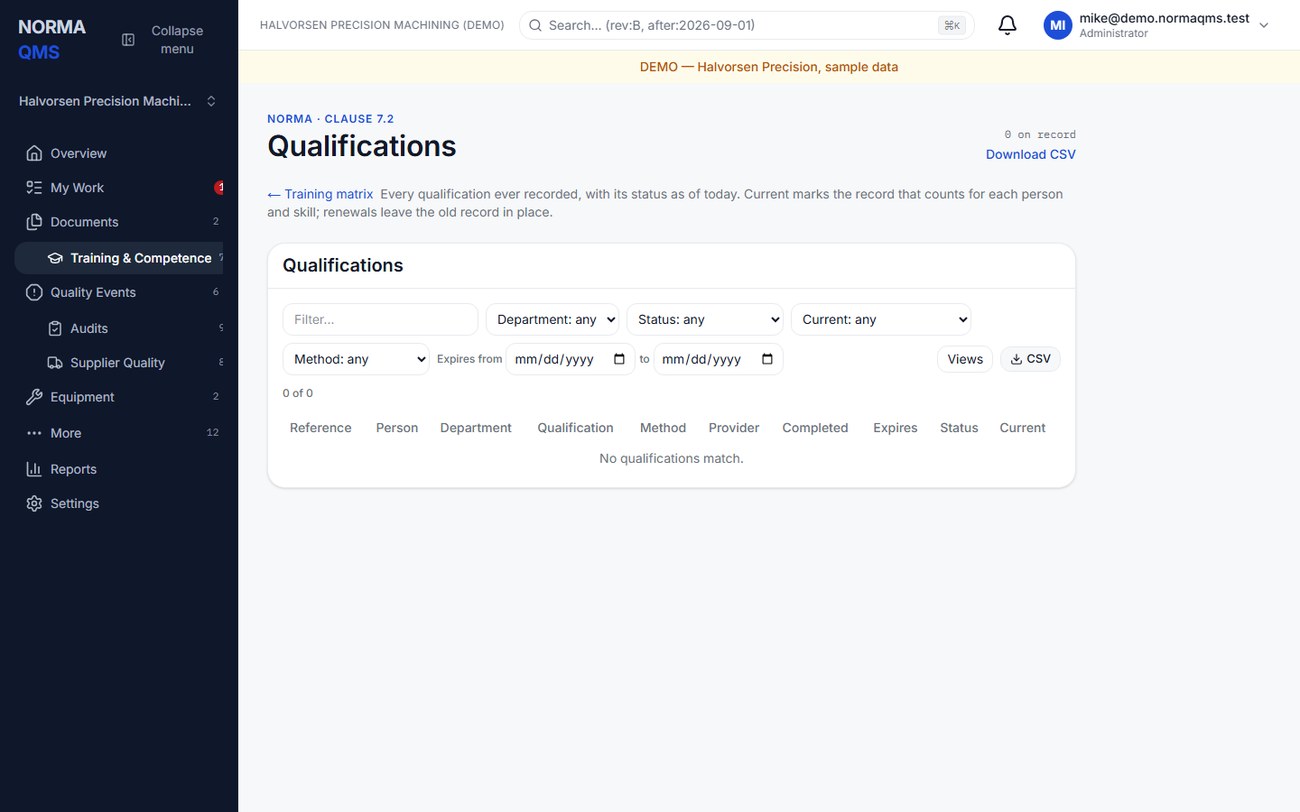
Statuses are Pending acceptance, Active, Expiring (within 30 days of the expiry date), Expired, Revoked, and Rejected. An accepted qualification can later be withdrawn with Revoke and a reason. Renewals leave the earlier record in place, marked Superseded; Current marks the record that counts for that person and skill. The full history is under Full register (Training > Qualifications), and Reports > Qualifications expiring or expired by department lists what is about to lapse.
Accepted certificates are also the evidence Traveler reads: a router operation that requires a qualification lets a person start it only when a certificate tagged to that qualification is Active or Expiring today (chapter 20).
Tip: Record the certificate the day it arrives and accept it the same week, before the operation that needs it is scheduled. A welder refused at the tablet on Monday morning because Friday's certificate is still Pending acceptance is a self-inflicted stoppage.
Tip: Assign reading by responsibility, not by headcount. Twelve people Due on a document only three of them use is noise that hides the three who matter, and it teaches the floor that Due means nothing.
In the user guide
This article is chapter 11, "Training and Competence", of the NormaQMS User Guide (NORMA-UG-001), which is under Help > User guide. Chapter numbers in the text refer to that guide.