Billing · For the owner
Modules, bundles, and what Norma costs
Billing sandbox and administration: plans and modules; your free trial; when a payment fails; change or cancel a plan; close the account; use a sandbox; telemetry; integration register; validation evidence and continuity. This is chapter 35 of the NormaQMS User Guide.
Plans and modules
Open: Settings > Billing. Administrator access is required. Document Control and Training are included free and always; their tiles read Included free. Everything else is bought as one bundle — the Everything, one price card, every module and unlimited users — or through a standards tier that appears when your adopted standard is AS9100 or ISO 13485 and adds that standard's overlay. Individual module tiles show their list price and an Unlock link, but the purchase is made from the bundle or tier card. When no tier applies the page says so: Working toward AS9100 or ISO 13485? Switch the standard in Settings and the tier appears here. An AS9100 tier does not by itself represent the ISO 13485 overlay, or vice versa.
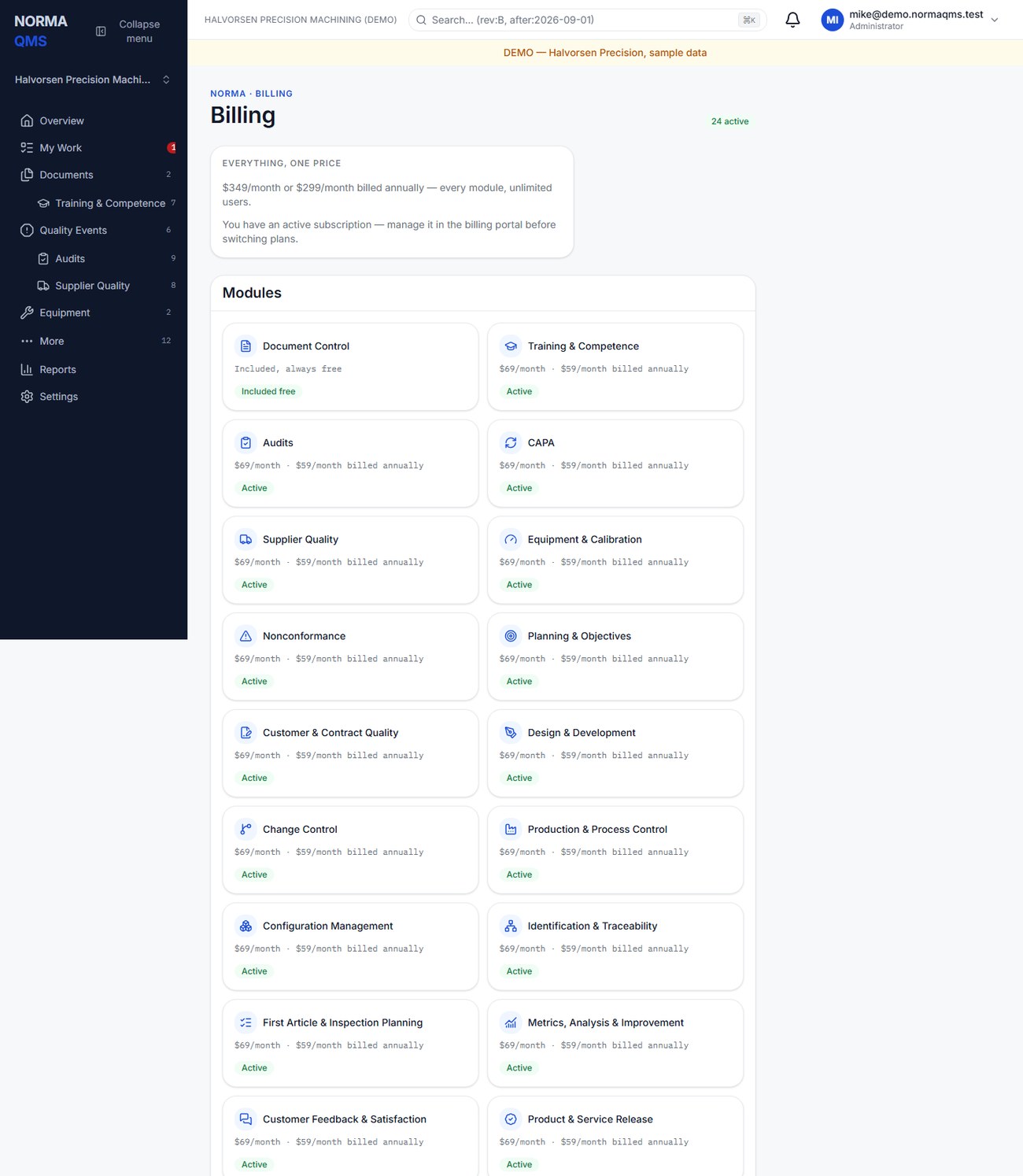
Review the current plan, billing interval, and checkout summary in the app before confirming a subscription change. Manage billing opens the billing portal for payment, invoice, and cancellation management; it appears after your first purchase. Turning a module off keeps its records: they still leave in every export (chapter 34), and they are back in the module the moment you turn it on. To close the organization entirely, see Close the account below. Prices are intentionally not reproduced in this manual; the current billing screen and checkout are the authority for a purchase. The public Pricing page (/pricing, linked from the site header) lists every plan with its monthly and annual price. Annual billing is ten months' price for twelve months, on every plan, and every plan has unlimited users.
The onboarding pages in NormaLMS (training items, tests, job roles, trainers and sign-offs; chapter 11) are part of Training and free on every plan. The NormaLMS course library is a separate product outside this guide. It is sold as one add-on, the NormaLMS Library, for unlimited learners, with three paths: ISO 9001 for Small Manufacturers, AS9100 and IA9100 for Small Aerospace Shops, and ISO 13485 for the Small Medical Device Manufacturer. The earlier NormaLMS Team and Quality plans are withdrawn. A standards tier includes the NormaLMS Library, and its card says so; an organization holding a tier is not offered it again.
Adopting a standard in a scope is separate from buying its overlay. A Plan gap calls attention to that difference. If payment was just completed, reload the module and Billing; if access still disagrees, contact support with the organization and transaction context.
Your free trial
A new organization starts with a 30-day NormaQMS trial, with no card. While it runs, every quality module and the AS9100 overlay are open, and the workspace reads Your NormaQMS trial ends on {date}. Every quality module is open until then. with a link to the pricing page. Administrators are emailed 7 days and 1 day before it ends. When it ends without a paid plan, the modules stay readable and every change in them is refused: Your NormaQMS trial ended on {date}. Your records stay readable; choose a plan to keep editing. Document Control stays free. Billing shows only what is paid, so a trial module is never shown as Active, and a trial never stops you buying. NormaMES has its own 90-day trial, started from Billing with Start 90-day free trial — no card.
When a payment fails
Norma gives 14 days of full access from the first failed payment. Every member and consultant sees a banner with the date: Your last payment didn't go through. Norma stays fully working until {date}; after that it becomes read-only until payment is updated. Nothing is deleted. Each administrator is emailed once for each failed invoice, and an administrator with billing access sees Update payment in the banner, which opens the billing portal.
If payment has not been updated when the 14 days end, the organization becomes read-only. Everyone can still read every record, and each export stays open to the people who hold it (chapter 34), but every change is refused until payment is updated. Billing, the register and termination exports, training transcripts and the management-review pack stay open, so nobody is locked out of their evidence, and shop-floor tablets go read-only at the same moment (chapter 21). Nothing is deleted at any stage. Paying the invoice restores full access.
Change or cancel a plan
Plan changes, downgrades and cancellation are made in Manage billing. They take effect at the end of the paid period, never immediately, and there is no proration. A module you are dropping stays open until that date, and the administrators are warned once. Buying it again before that date keeps it.
Close the account
Open: Settings > Close this account. Only an administrator of a production organization sees it (not a sandbox or the demo), and it is behind the administrator's authenticator check (chapter 2).
- Download the termination pack. Until there is one from the last 7 days, the page offers only Download termination pack (ZIP) and says when the last one was made.
- Type the organization's name exactly as it appears in Type {name} to confirm, and choose Close this account.
Closing cancels every subscription at once and closes the workspace for everyone. From then on, every member who opens it sees the Account closed page: This account was closed on {date}. Its records are kept until {date} and then deleted. Contact support@normaqms.com to reopen before then. An administrator can still download the termination export from that page until the date. It asks for the second sign-in step first; an administrator with no authenticator app confirms an emailed code and the termination pack downloads without setting one up. This applies to the termination pack only (chapter 34). Records are kept for 90 days after closure and then deleted by Norma; you do not need to do anything. To reopen within the 90 days, email support.
Use a sandbox
Eligible plans allow an administrator to create a sandbox from the production organization's Settings. The sandbox shares plan entitlements but starts with empty business records. It is intended for training, onboarding, and qualification exercises.
- Choose Create sandbox from the parent organization's Settings.
- Open it and confirm the Sandbox identification before creating sample records.
- Run the exercise with sample people, documents, and quality records.
- Return to the production organization and confirm its work and registers remain separate.
- When a clean training environment is needed, use Reset sandbox from the parent. Reset archives the old sandbox and creates a fresh one; it does not erase its chain history.
Sandbox documents, NCs, and CAPAs use SBX identification and exports carry sandbox identification. Do not copy sandbox evidence into a production acceptance decision. Sandbox reset is not a production reset or backup recovery feature.
Telemetry
Open: Settings > Data & telemetry. An administrator can turn usage telemetry on or off. The screen explains the categories: searches and whether they found results, work opened or completed, form errors, report drill-downs, help reads, and import activity, with timing and non-content identifiers.
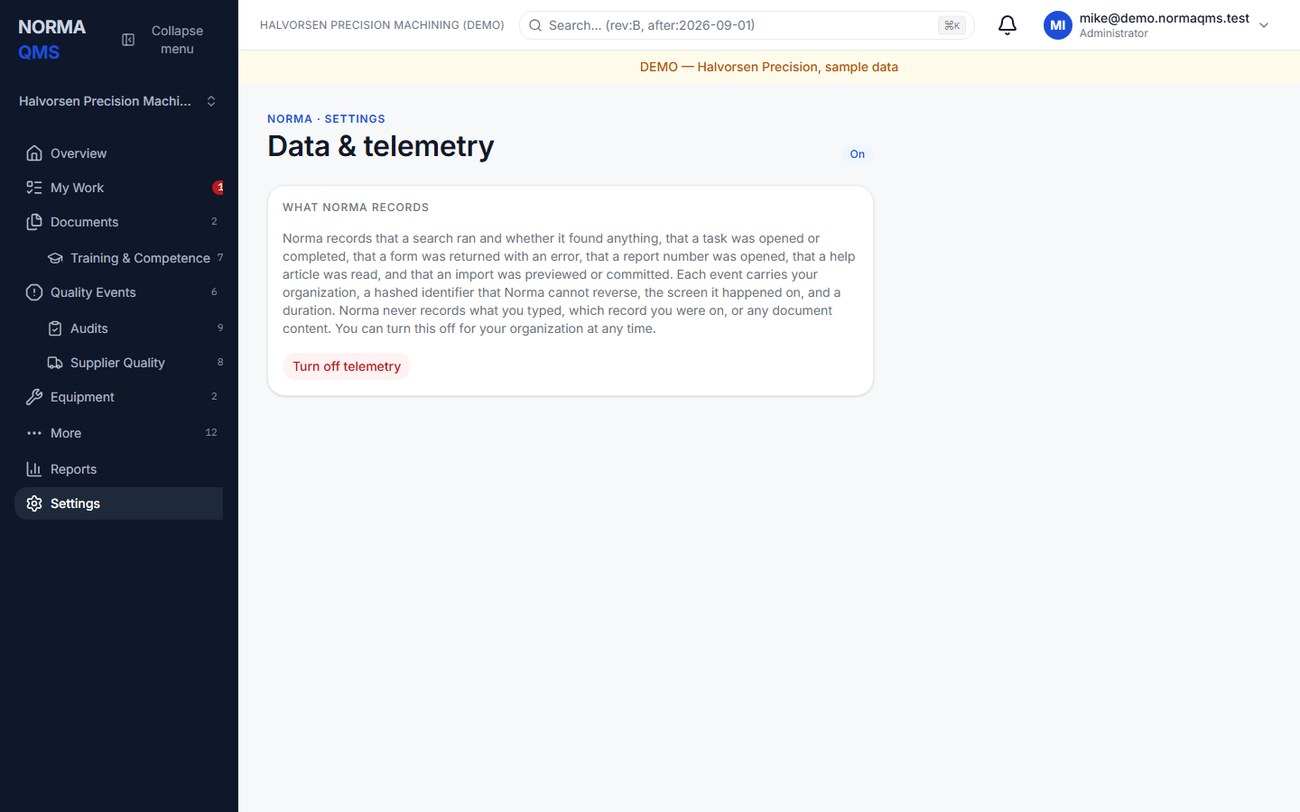
This usage setting is separate from quality-record audit history. Turning off telemetry does not turn off signatures, record-chain events, or required quality attribution.
Integration register
Open: Settings > Manage integrations. Quality leads and administrators keep a register of the outside systems your quality data passes through: the ERP, the CAD vault, a customer portal. It is a register, not a connection: Norma does not connect to these systems and stores no password, key, or connection string.
- Under Record an external system, enter the System, Vendor, What kind of system, Which way data moves, Where it runs, Who owns it here, What it is for, Where access is managed (where an administrator grants access, never the credential), and Review due. Tick Carries personal data or Carries regulated data where true. Choose Add to the register; Norma assigns an INT reference.
- On the system, record each data flow: What data crosses, Direction, and How often, then Record this data flow.
- Use Mark suspended or Mark active as its use changes. To retire it, enter Retire — why and choose Retire. A retired system stays on the register and takes no new data flows.
Validation evidence and continuity
Where the Validation evidence card is available, it explains the vendor evidence and tenant qualification material supplied for the applicable package. Ask support for the current release evidence and blank qualification protocols. Execute and retain your shop's own installation and performance qualification activities under its approved process. Review release notices and re-execute the identified activities when your process requires it.
A quality-record export is not a restore point. If data is unexpectedly missing or the service is unavailable, preserve the relevant references, check organization and access, and contact support. Continue any necessary temporary shop records under your approved continuity procedure and reconcile them when service resumes.
In the user guide
This article is chapter 35, "Billing sandbox and administration", of the NormaQMS User Guide (NORMA-UG-001), which is under Help > User guide. Chapter numbers in the text refer to that guide.