Troubleshooting · For everyone
Common questions
Troubleshooting and support: start with the record and the message; help. This is chapter 41 of the NormaQMS User Guide.
Start with the record and the message
If a save or transition is refused, read the error and the record's checklist before retrying. Check that the page still represents the latest state. Another person may have acted since you opened it. A disabled control, missing control, and failed submit can have different causes.
| Symptom | Check and response |
|---|---|
| Organization or record not found | Confirm signed-in email, organization, unit membership, and external-grant scope; clear filters before recreating anything |
| Module missing from sidebar | Check More, personal pins, roles, and plan access; ask the administrator if access is needed |
| Locked module after payment | Reload and inspect Billing; provide support the organization and purchase context if it persists |
| Everything is read-only after a failed payment | The 14 days of grace after the first failed payment have ended; an administrator chooses Update payment in the banner or Manage billing; reading and exports keep working, and nothing is deleted (chapter 35) |
| Modules read-only after the trial | The 30-day trial ended without a paid plan; records stay readable; an administrator chooses a plan in Billing |
| Tablet says Nothing can be signed while this account is read-only. | The account is read-only after a failed payment, or closed; the floor banner says which; update payment at the desk, then sign (chapter 21) |
| Signed out after 15 minutes | The server ends any session idle for more than 15 minutes; sign in again, and save work before stepping away |
| Asked for an authenticator code | You set up an authenticator app, or you are an administrator; enter the code the app shows now; lost device: email support@normaqms.com from your sign-in address (chapter 2) |
| Current password refused or required | A password change needs the current password unless you opened an emailed link in the last 15 minutes; use Email me a link to set a password |
| Too many wrong passwords. Wait an hour, or reset your password. | Ten wrong passwords for that email in the last hour, or 30 from your network address across any emails; wait for the hour to pass, or choose Forgot password? on the sign-in page; nobody needs to unlock it (chapter 2) |
| Signing is paused for an hour after 5 wrong passwords. | Five wrong signing passwords for your account in the last hour; your administrators were emailed; the pause lifts by itself; if it was not you, set a new password with Forgot password? (chapter 32) |
| The password could not be checked. Nothing was signed. Try again. | Norma could not reach the password check; nothing was signed and the attempt does not count as a wrong password; try again |
| That could not be saved. Try again, and tell support if it keeps happening. | The save failed for a technical reason, not because of a rule on the record; try once more, and if it repeats, choose Contact support with the time and what you were saving. A refusal about your record, such as a missing field, still shows its own sentence |
| Cannot create or edit a record that others can | You hold no functional role, or you work under an Advise key; ask an administrator for the role that matches your work (chapter 4) |
| You cannot do that on this record. | The record belongs to a unit outside yours and your role is department-scoped; ask someone in that unit or with an organization-wide role (chapter 4) |
| File refused | Over 25 MB (or the field's lower limit), contents that do not match the file type, or active content such as an SVG or a macro-enabled file (chapter 5) |
| Asked to accept the terms | A new Terms of Service or Privacy Notice version was published; read it and choose I agree and continue |
| Workspace shows Account closed | An administrator closed the account; records are kept until the date shown; email support@normaqms.com to reopen before then |
| Signature rejected | Check password, named approver, current revision, and decision meaning; an author cannot approve their own revision |
| File replacement blocked | A signature or lifecycle state may have frozen the revision; create the next revision for changed content |
| Send for review unavailable | Attach the file and add at least one approver |
| Mark approved or Make effective refused | Check every required approval and the user's authority; one missing or negative approval blocks the gate |
| Document review due unexpectedly | Check effective date, review interval, and latest periodic review; finish any open revision |
| Training changed to Due | Inspect the new effective revision and training-impact decision; complete the current requirement |
| Approved revision did not take effect on its date | The page reads Not released on {date} with the reason; resolve it, or Cancel schedule and make it effective again (chapter 9) |
| Trainer cannot sign someone off | The trainer needs a live designation covering the item, their own training current on that revision and their own refresher not lapsed, and cannot sign their own record (chapter 11) |
| Training sign button replaced on the tablet | PIN signing for training is off (Sign in on a computer to sign training.); sign at the desk with a password |
| Tablet refuses a sign-off for training or a deviation | The person is not trained on the job's revision of the work instruction, or has not acknowledged a temporary deviation on the operation; finish it in Your training or acknowledge it in the panel, or a quality manager overrides (chapter 11) |
| A current training count differs by user | Compare department visibility, active people, requirements, and report definitions |
| Calibration date did not advance | Fail does not advance last-good date; inspect the result, date, and interval |
| NC will not close | Disposition, rework or repair verification, or CAPA decision is missing, or the concession is pending, expired, exhausted, or of unknown quantity |
| CAPA remains open after actions finish | Record implementation and Verify by, then perform effectiveness verification |
| CAPA reopened after verification | Not effective intentionally returns it to In progress; record the next implementation and check |
| Production release blocked after reinspection | A Fail blocks until a nonconformance raised from that row is Closed with any concession in force; a later Pass does not cover it |
| Audit refused at scheduling | The planned date is outside the program period, the program is not approved, or the auditor owns the process or built your system; record an independence exception or name another auditor |
| Close finding not offered | A Major or Minor finding needs Record verification first |
| Objective will not take a measurement | It reads a metric; record the value on the metric, or unlink it with a reason |
| Certificate recorded but the person is still refused | The qualification is Pending acceptance, expired, revoked, or not tagged to the Traveler qualification |
| Tablet refuses a sign-off | Read the message: hold, qualification, missing check, failed characteristic, gage, or count; chapter 21 lists each with its way out |
| Job cannot be released in Traveler | The router was withdrawn, or no router is released; cancel and recreate on the current router |
| Inspection plan will not release | Check product reference, revision, and at least one characteristic |
| Change will not submit or approve | Check all impact domains and notes, implementation plan, and effectivity |
| Complaint or event will not close | Follow its specific checklist; check reportability reference or exclusive notification alternatives |
| Management review will not close | Populate every input area and decisions; verify seeded text was actually reviewed |
| Import count differs from pasted rows | Inspect errors and duplicate rows defaulted to Skip; only eligible write actions count |
| Deployment or update refused | Check open revisions, stale preview, required variables, pack publication, and practice access |
| Supplier or auditor cannot enter | Match invitation email, acceptance, expiry, revocation, and the correct external portal |
| CSV appears empty | Clear filters, confirm the selected register, and check whether the figure you came from counts only records your access covers |
| Organization export refused as too large | Use Settings > Evidence archives |
| Organization export or evidence archive link missing, or a code asked for first | These exports are for administrators, behind the second sign-in step; a quality manager uses the register CSV. Without an authenticator app, an emailed code is enough for the termination pack, but the organization ZIP and evidence archives send you to Settings to set one up first (chapter 34) |
| Consultants list shows No end date: set one | The key was issued before end dates were required; choose Set dates and give it one (chapter 38) |
| Unsaved draft did not return | Recovery is limited to supported forms, browser storage, and seven days; files and passwords are excluded |
| Chain does not verify | Preserve the reference, exported evidence, and error; escalate before relying on that chain |
Help
Open Help for searchable module, record, account, billing, and troubleshooting articles. The public Help area and in-app Help can provide the same topic content in different navigation contexts. Use the article title or support topic identifier when available.
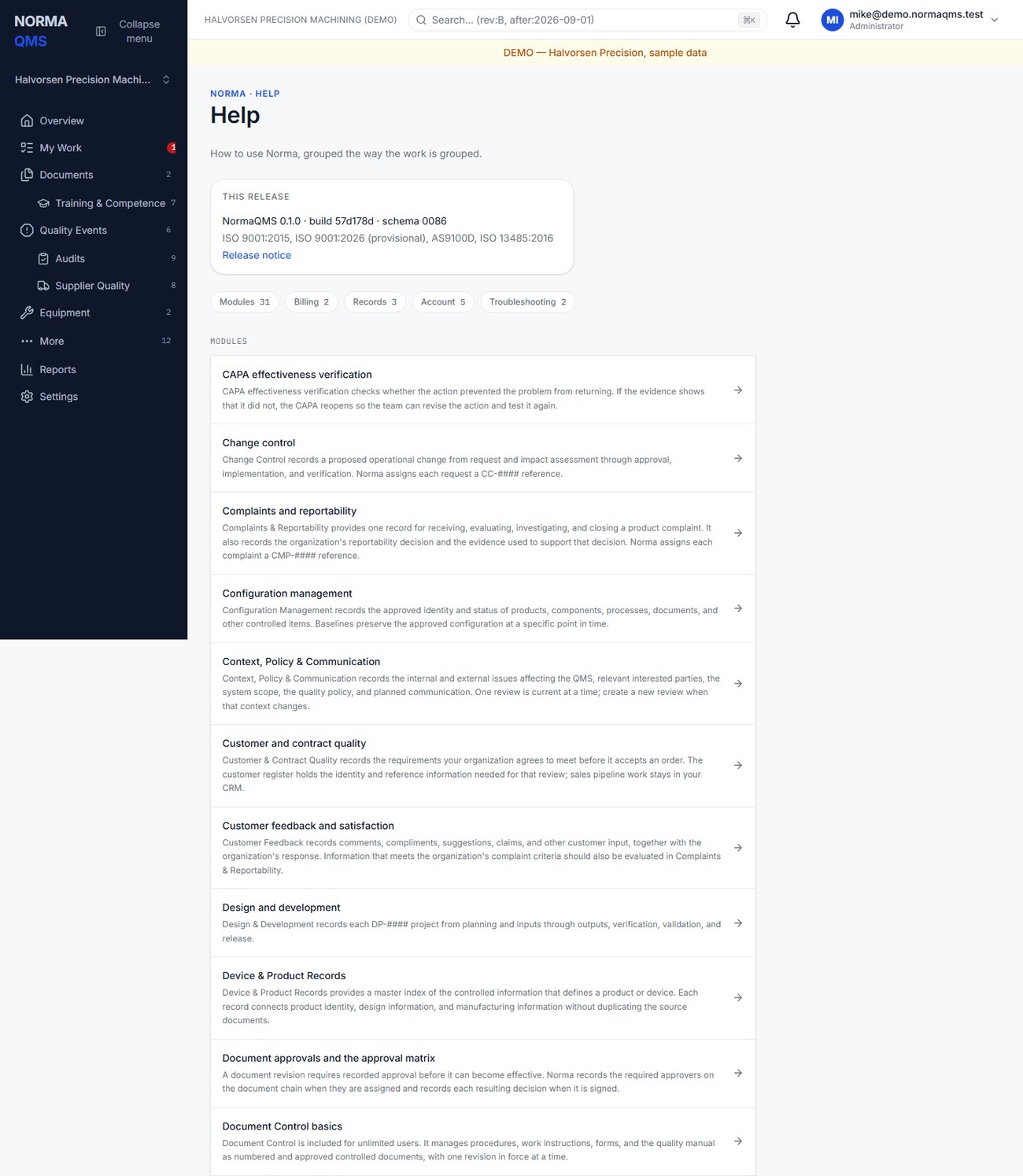
When the guide does not answer it, choose Contact support, in the user menu and at the foot of both Help pages. It opens an email to support@normaqms.com with your organization's name in the subject; a person reads every message.
For a workflow question, open the relevant Help article from the profile menu. The article explains the task, the surrounding workflow, and the related modules. If an action produces an error, record the module, record reference, action attempted, exact error text, approximate time, browser, and whether the issue affects one user or several. Note what you expected and what happened.
The public site also includes product information, account entry points, Help, educational blog articles, verification, and the token-protected Passport. Educational articles do not change your shop's approved instructions or create records in its QMS.
In the user guide
This article is chapter 41, "Troubleshooting and support", of the NormaQMS User Guide (NORMA-UG-001), which is under Help > User guide. Chapter numbers in the text refer to that guide.