Troubleshooting · For everyone
Sign-in, sessions, and access problems
First sign in and first day: sign in; set a password before signing records; authenticator app and administrator actions; a practical first day; sessions and shared terminals. This is chapter 2 of the NormaQMS User Guide.
Sign in
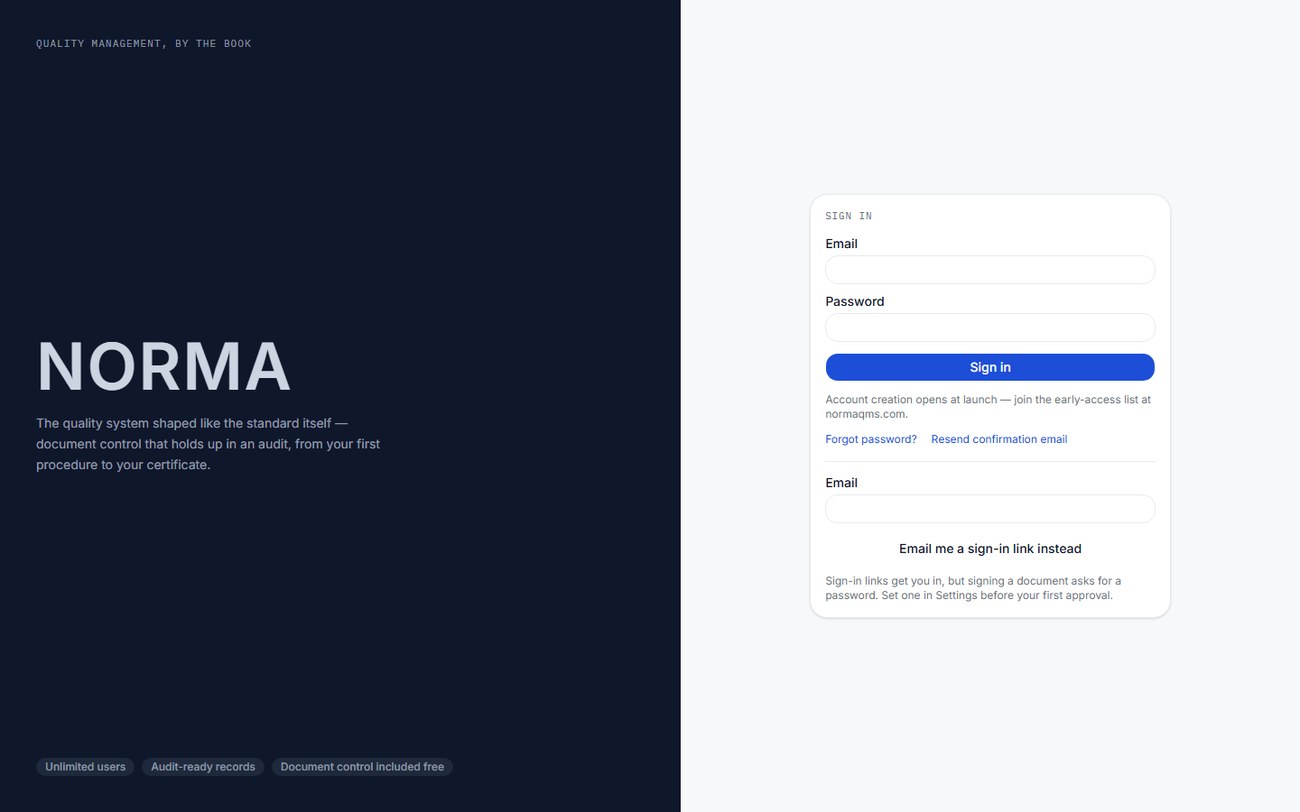
- Open your NormaQMS site and choose Sign in. To create a new shop, choose Start free instead; it opens Create your account. Tick I agree to the Terms and the Privacy Notice before Create account; the form refuses an account without it. Document Control is free, and a new shop also starts a 30-day NormaQMS trial that opens every quality module, with no card required (chapter 35). A consultancy uses Create your consultant account.
- Enter the email address attached to your membership and your password. If you use Email me a sign-in link, open the newest message and follow its link.
- If you have set up an authenticator app, Norma asks for its code before anything else opens: enter the six-digit code the app shows now under Authenticator code and choose Confirm.
- If creating an account, complete the email confirmation step when prompted. Access to an existing shop still requires that shop's membership or an appropriate external invitation. To look around before committing, Explore the sample shop opens the public demo — a fictional 42-person machine shop, entered as one of three people; do not put real records there.
- Check the organization name in the sidebar. Use the organization switcher if you work in more than one shop or also belong to a consultancy.
- Open My Work. Review the work that applies to you, then open a record to perform its next step.
An expired or previously used email link cannot be reused. Request a fresh link. If you reach a no-access screen, check that the address used to sign in matches the address the administrator invited. A supplier contact, auditor, consultant, and internal member can have different landing pages.
After 10 wrong passwords for one email address within an hour, sign-in with a password is refused for the rest of that hour: Too many wrong passwords. Wait an hour, or reset your password. Sign-in is also refused for an hour when one network address has made 30 wrong attempts in an hour, across any email addresses. The refusal lifts by itself when the hour has passed; nobody has to unlock it. To get in sooner, choose Forgot password? on the sign-in page; the emailed link signs you in and takes you to the page where you set a new password.
When Norma publishes a new version of its Terms of Service or Privacy Notice, the next page you open, in any Norma product, is Our terms. It links the changed document; read it and choose I agree and continue, and you go on to where you were heading. You are asked once per new version, whether or not you have signed out since. The current texts are public: Terms, Privacy, Security, Subprocessors and DPA in the footer of the NormaQMS site.
Set a password before signing records
Email-link sign-in gets you into the app, but controlled electronic signatures require a password check. Open Settings and find the Password for signatures card. Enter Current password, New password and Confirm new password, then select Save password. The new password must contain at least eight characters and match its confirmation.
Changing a password always asks for the current one, with one exception. If you have no password yet, or have forgotten it, choose Email me a link to set a password. Open the link within an hour; for 15 minutes after you open it you can set a password on the same card with Current password left blank. The same 15 minutes apply straight after you sign in from an emailed sign-in link or an invitation. After that, the current password is required again.
Saving a new password signs out every other session you have (another browser, a phone, a shared PC), and Norma emails you a notice with the time of the change. The notice cannot be turned off. If you did not make the change, reset your password from the sign-in page at once and contact support@normaqms.com.
Use your own account for all work. The person named on the signature must be the person performing it. Chapter 32 explains the signature process and the short identity-verification window.
Tip: Set the password on day one, before the first approval is due. The most common first-week support question is an approver who signed in by email link and cannot sign a revision because there is no password to check.
Authenticator app and administrator actions
An authenticator app on your phone adds a second check to your sign-in, so a leaked password or a forwarded sign-in link is not enough on its own. Its card is Settings > Authenticator app, marked Optional or Required for your role.
- Choose Set up authenticator.
- Scan the QR code with the app, or type the key shown under Or type this key.
- Enter the Six-digit code the app shows and choose Confirm. The card then reads Authenticator enrolled.
From then on, every sign-in asks for the app's code before any page opens. Codes change every 30 seconds; enter the one showing now. Confirming a code keeps that browser confirmed for 12 hours.
- Members who are not administrators: the app is optional. To stop using it, verify a code and choose Remove authenticator.
- Administrators: the app is required. Administrators hold membership, billing, consultant, sandbox and passport powers, so Norma asks for a code from the app before those changes, before the whole-company exports (chapter 34), and at sign-in. Until you set one up, the first administrator action asks you to Confirm it's you with a six-digit code emailed to your sign-in address (Email me a code, then Confirmation code and Confirm). Norma then sends you to Settings, Administrators need an authenticator app. Set one up below before managing members, billing, consultants, sandboxes or the passport., and administrator actions wait until the app is set up. Once you have an app, an emailed code is no longer accepted: This account uses an authenticator app. Enter the code from the app instead of an emailed code. An administrator cannot remove their own authenticator.
- Consultants and auditors working under a grant are not asked for an administrator check.
An emailed code expires after 10 minutes, and you can ask for a new one once a minute. Too many wrong codes pause the check for an hour, so slow down rather than guessing. If you lose the device with your authenticator app, email support@normaqms.com from your sign-in address; the Norma team removes the old authenticator after confirming who you are, and you set up a new one.
A practical first day
| Role | First-day tasks | Result to check |
|---|---|---|
| Quality manager | Check scope and roles; open My Work; review document, supplier, calibration, and NC registers | Correct access and a prioritized list of open obligations |
| Quality engineer | Find the effective drawing or instruction; review assigned CAPAs and engineering changes; open an inspection plan | Correct technical baseline and clear next actions |
| QA technician | Check due reading, instrument status, and work instructions; practice an NC in the sandbox | Ability to retrieve evidence and report a problem |
| Administrator | Finish setup, place people, assign roles, check plan access, and arrange a second authorized administrator if needed | The right people can work under their own identities |
Sessions and shared terminals
The app uses a 15-minute idle limit, and the server enforces it: a session idle for more than 15 minutes is signed out whatever the browser is doing, so a tab left open does not keep you signed in. The sign-in page then reads You were signed out after 15 minutes of inactivity — Norma protects electronic signatures by closing idle sessions. Sign in to pick up where you left off. Save your work before leaving a screen and sign out when leaving a shared station. A sign-in session and a signature verification are separate: being signed in does not eliminate password re-entry for a signature. If pages appear signed in but actions repeatedly return you to login, sign out fully and sign in again.
On a phone or narrow screen, open the navigation menu to change destinations and scroll wide registers horizontally when needed. Expand the record sections and tabs rather than assuming fields have disappeared. Use the sandbox for practice so sample NCs, approvals, and calibration events do not enter the production record.
In the user guide
This article is chapter 2, "First sign in and first day", of the NormaQMS User Guide (NORMA-UG-001), which is under Help > User guide. Chapter numbers in the text refer to that guide.